Getting Started
This guide will walk you through the basic usage of the IBL Alignment GUI.
1. Sample Data
We provide a sample dataset to help you quickly get started with the tool. Download the sample data here.
Extract the contents to a location on your computer - you’ll need this path when loading data into the GUI.
Sample data 1 contains data from a single shank NP3B probe insertion with 384 channels.
Sample data 2 contains data from a four shank NP2.4 probe with 96 channels per shank.
2. Launching the GUI
After installation, launch the alignment GUI (with your virtual environment activated):
alignment-gui
A window containing blank plots should appear.
3. Loading Data
Once the GUI has launched, you’ll see a button in the top right corner with the symbol ...
Clicking this button opens a menu with two ways to choose the data to align:
- Open data folder…
Choose a single folder that holds all of the data for one session
- Open session YAML…
Choose a YAML file that lists where each of the datasets lives
Sample data 1 can be loaded using the select Open data folder…. Navigate to the folder containing your extracted sample data and choose Sample data 1 folder. The data is loaded as soon as the folder is selected.
Note
This assumes all of the data for the session (spike sorting output, raw electrophysiology recordings, probe trajectory files, and histology volumes) is in the one folder. Use a session YAML if the datasets are spread across several folders, as shown with Sample data 2 in section 7.
4. Overview of Layout
The GUI consists of four main figures, each displaying a different aspect of the alignment process.
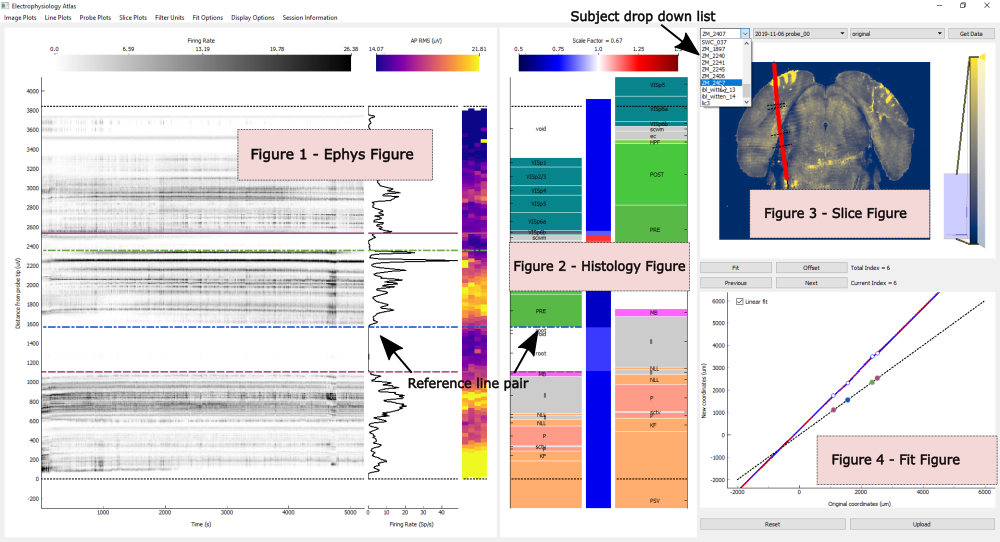
Figure 1: Ephys Figure
The Ephys figure contains three panels that display electrophysiology-related data in different formats:
- Image Plots
2D representation of data displayed in images or scatter plots
- Line Plots
1D representation of data displayed in a line plot
- Probe Plots
2D representations of data overlaid on the probe geometry
You can switch between plots using either the Image Plots, Line Plots, and Probe Plots menu bars or the following keyboard shortcuts:
Shortcut |
Action |
|---|---|
Alt+1 / Shift+Alt+1 |
Image plots (forward / backward) |
Alt+2 / Shift+Alt+2 |
Line plots (forward / backward) |
Alt+3 / Shift+Alt+3 |
Probe plots (forward / backward) |
Filtering Units
By default, the Ephys plots display all of the units returned by the spike sorting.
To restrict which units are shown, use the Filter Plots option in the menu bar. This allows you to selectively display specific unit classes, making it easier to focus on well-isolated units during alignment.
Figure 2: Histology Figure
The Histology figure displays the brain regions through which the traced probe track passes (the trajectory). It is divided into three panels, shown from left to right:
- Scaled brain regions (left)
Brain regions after scaling has been applied based on reference lines
- Scale factor heatmap (middle)
Heatmap showing the scaling applied to each region along the trajectory
- Original brain regions (right)
Unscaled reference brain regions
Black dotted lines in the left and right panels indicate the positions of the most ventral and most dorsal electrodes along the trajectory.
Brain region labels overlaid on the histology can be toggled on and off:
Shortcut |
Action |
|---|---|
Shift+L |
Toggle brain region labels |
When hovering over a region in the central (scale factor) panel, the scale factor is displayed in the title of the colour bar at the top of the figure.
Brain Region Mappings
The brain regions shown in the Histology figure can be displayed under different mappings,
selectable from the Region Plots menu bar or with the following shortcuts:
Shortcut |
Action |
|---|---|
Alt+5 / Shift+Alt+5 |
Region plots (forward / backward) |
Three mappings are always available:
- Allen
The full Allen brain region hierarchy
- Beryl
A coarser mapping, grouping the Allen regions into larger areas
- Cosmos
The coarsest mapping, grouping the regions into a small number of major areas
Further options are added by the Channel Prediction plugin once a region prediction model has been loaded, so that predicted regions can be compared against the histology. See Plugins for details.
Figure 3: Slice Figure
The Slice figure displays a slice through the brain at the location of the traced probe trajectory.
Each slice layer is derived from the trajectory coordinate at that depth. As a result, if the trajectory is not smooth, the image may appear to jump between slices in some regions.
Overlaid on the slice are:
A black line connecting the traced trajectory points and extended to the top and bottom of the brain
Points indicating the locations of electrodes along the trajectory, coloured by the current feature displayed in the probe plots of the Ephys figure
When reference lines are added in the Ephys and Histology figures, they are displayed as black dotted lines perpendicular to the local trajectory.
The overlaid lines and electrode markers can be toggled on and off:
Shortcut |
Action |
|---|---|
Shift+C |
Toggle trajectory overlay and electrode markers |
The intensity of the slice image can be adjusted using the intensity scale bar on the right-hand side of the figure.
Slice Display Options
The available slice types are selectable via the Slice Plots menu bar or the following shortcuts:
Shortcut |
Action |
|---|---|
Alt+4 / Shift+Alt+4 |
Cycle through slice types (forward / backward) |
The Allen Brain Atlas average template and annotation template are always available. Alongside them, one option is added for each histology volume found for the session, so the number of options depends on the data provided:
Allen Brain Atlas average template
Allen Brain Atlas annotation template
Figure 4: Fit Figure
The Fit figure provides a 2D visualization of the scaling applied along the depth of the probe trajectory.
Two lines are displayed:
- Fit line
Shows the piecewise fit applied along the depth of the trajectory. The points indicate the positions of reference lines.
- Linear fit line (dotted)
Displays a linear fit through all reference lines (only appears when 3+ reference lines are used)
Rescaling and Zoom
You can zoom into plots in the Ephys, Histology and Slice figures for closer inspection.
To reset the axes to their default limits:
Shortcut |
Action |
|---|---|
Shift+A |
Reset axes to default limits |
The colour and data ranges of the plots can be adjusted with the Range Controller plugin (see Plugins). To return every plot to the range it was loaded with:
Shortcut |
Action |
|---|---|
R |
Reset all plot ranges to their defaults |
5. Alignment Workflow
Alignment between electrophysiology and histology data is achieved using reference line pairs.
Adding Reference Lines
A reference line pair can be added by double-clicking anywhere in either the Ephys or Histology figure.
This creates a pair of lines with matching colour and style, one in each figure. Each line can be moved independently.
Once both lines are positioned on corresponding features or landmarks, apply the fit:
Shortcut |
Action |
|---|---|
Click Fit button |
Apply fit |
Enter |
Apply fit |
Fit Behaviour
The type of fit applied depends on the number of reference line pairs:
- One reference line pair
Applies a simple offset along the trajectory
- Two reference line pairs
Applies an offset and scaling between the two reference lines. Regions outside the reference lines are offset but remain unscaled.
- Three or more reference line pairs
Applies an offset and piecewise scaling between each adjacent pair. By default, regions beyond the reference lines are scaled according to a global linear fit.
To prevent scaling outside the reference lines, disable the default behaviour by unchecking the Linear Fit checkbox in the top-left corner of the Fit figure.
When a fit is applied, the electrode locations shown in the Slice figure update automatically.
Previous Fits
Up to 10 previous fits are stored in memory.
You can navigate through previous fits:
Shortcut |
Action |
|---|---|
Click Previous / Next buttons |
Navigate through fit history |
Shift+Left / Shift+Right |
Navigate through fit history |
This allows you to quickly compare different alignment solutions.
Resetting the Fit
To reset the GUI to its original state (i.e. with no alignments applied):
Shortcut |
Action |
|---|---|
Click Reset button |
Reset all alignments |
Shift+R |
Reset all alignments |
Managing Reference Lines
Shortcut |
Action |
|---|---|
Shift+D |
Delete reference line (hover over line first) |
Shift+H |
Hide / show all reference lines |
Warning
Deleting a reference line also removes any fits that depend on it.
6. Saving Alignment Results
Once you are satisfied with the alignment, save the updated electrode locations:
Shortcut |
Action |
|---|---|
Click Upload button |
Save alignment results |
Shift+U |
Save alignment results |
This saves the following files in the output data directory:
- channel_locations.json
Contains the updated electrode locations
- prev_alignments.json
Stores the reference lines used for alignment, allowing previous alignments to be reloaded later
You will notice in the dropdown menu next to the Load button in the top right corner of the GUI that this new alignment is now available to load.
Saving Work in Progress
An alignment that is not yet ready to be uploaded can be saved to file, so that it is not lost if the GUI is closed or crashes before the upload:
Shortcut |
Action |
|---|---|
Click Save Progress in the Fit Options menu |
Save the current alignment to file |
Shift+S |
Save the current alignment to file |
The saved alignment is written to alignment_progress.json in the output data directory. The
next time the data is loaded it appears in the alignment dropdown under a recovered key,
marked so that it cannot be mistaken for an alignment that has been uploaded, and it is chosen as
the starting alignment. It is deleted once the alignment has been uploaded.
With multi-shank data you are asked which shanks to save, in the same way as for uploading.
7. Loading Multi-Shank Data
Sample Data 2 contains recordings from a four-shank NP2.4 probe, and can be used to demonstrate the multi-shank capabilities of the GUI. We will also use the multi-shank data to demonstrate the use of a session YAML file, which allows datasets to be spread across multiple folders.
The YAML shipped with Sample Data 2 lists the datasets relative to a folder given by the path
entry at the top of the file, so before loading it this must be changed to point at the Sample
Data 2 folder on your own computer:
path: /path/to/sample_data_2      # <- change this to where you extracted Sample Data 2

probes:
  probe00a:
    datasets:
      spike_sorting:
        path: spike_sorting/probe00a
To load the data:
Click the
...button in the top-right corner of the GUI and select Open session YAML….Navigate to the directory containing Sample Data 2.
Select the yaml file.
Once loaded, four panels will appear in the GUI window, one for each shank.
Working with Multiple Shanks
The alignment workflow is identical to that described for single-shank data. However, you can now switch between shanks:
Shortcut |
Action |
|---|---|
Click shank tabs |
Switch between shanks |
Left / Right |
Switch between shanks |
Although alignment is performed independently for each shank, the GUI allows all shanks to be visualised simultaneously. This is particularly useful for ensuring consistency across shanks and for accounting for mechanical constraints of the probe during alignment.
Tabbed and Non-Tabbed Views
Two display modes are available when working with multi-shank data:
Tabbed view: Each shank displayed under its own tab
Non-tabbed view: All shanks displayed simultaneously
You can toggle between these modes:
Shortcut |
Action |
|---|---|
Click Toggle layout in Display menu |
Toggle view mode |
T |
Toggle view mode |
In the non-tabbed view:
The Fit figure shows fit lines for all shanks simultaneously
The currently active shank is highlighted in red in the title bar of each figure
You can change the active shank using Left / Right arrow keys, or by clicking directly on the tabs.
Uploading Alignments
After pressing the Upload button, a dialog will appear asking whether to upload alignments for all shanks or only the active shank.
The data will be saved in the same way as for single-shank data, with each shank’s results saved in separate files with appropriate suffixes (e.g., channel_locations_shank1.json).
Resources
An introduction to the tool was given at the 2020 UCL Neuropixels course. The lecture can be found here.